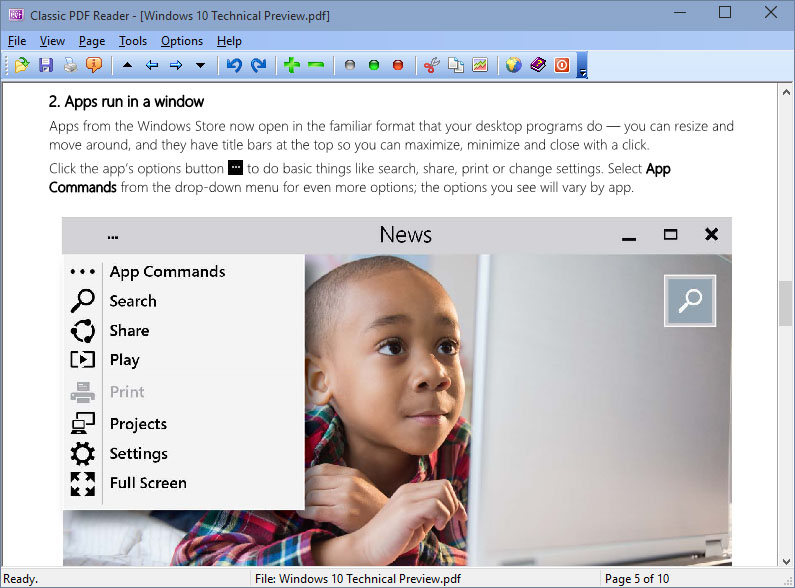

Classic PDF Reader for Windows 10
Version 1.01
Freeware
Free
0 downloads
Windows 10 is great, but if you want to run two
instances of a modern PDF Reader app at the same time
or read two PDFs side by side, but it's only possible
to view one at a time using the Reader apps. You can
switch between two PDFs open in the PDF Reader app,
but not in the same way as switching between open
documents in other apps. Rather than being able to Alt-
Tab or Windows-Tab through things, you have to use a
menu. Inconsistency once again.
The solution is to install a Classic PDF Reader that
allows for multiple documents to be displayed side by
side, but why should you? Sod it, you might as well
install Classic PDF Reader and use it alongside
Windows' own Reader - at least then you can be
consistent with your use of inconsistent interfaces.
It takes you back to your previous complaint of
Windows 10 being like a rollercoaster ride.
More advanced features include the conversion of PDF
to TXT, BMP, JPG, GIF, PNG, WMF, EMF, EPS, and TIFF,
snipping your desired text or graphics out of PDF file.
As an alternative to Microsoft PDF Reader or Adobe
Reader, Classic PDF Reader is extremely fast and
responsive when you scroll your mouse between PDF
pages on Windows 10.
Features:
View PDF Side by Side
Open and view PDF files in multiple windows, and read
them side by side in Microsoft Windows 10.
Snipping Text and Graphics
Cut and paste your desired text and graphics out of
PDF document.
Save PDF as Other File Format
Convert PDF to text and graphics in BMP, JPG, GIF,
PNG, WMF, EMF, EPS, and TIFF format.
PDF Slide Show
Present your PDF file as a PowerPoint slides in a full-
screen show..
Mouse Wheel Scrolling
Drag the view area by scrolling your mouse wheel.
High-quality rendering
View graphics and text in high resolution.
Work with 86 different languages
PDF files with Asian, Hebrew, Arabic and other
language fonts can be opened and viewed without
difficulty.
instances of a modern PDF Reader app at the same time
or read two PDFs side by side, but it's only possible
to view one at a time using the Reader apps. You can
switch between two PDFs open in the PDF Reader app,
but not in the same way as switching between open
documents in other apps. Rather than being able to Alt-
Tab or Windows-Tab through things, you have to use a
menu. Inconsistency once again.
The solution is to install a Classic PDF Reader that
allows for multiple documents to be displayed side by
side, but why should you? Sod it, you might as well
install Classic PDF Reader and use it alongside
Windows' own Reader - at least then you can be
consistent with your use of inconsistent interfaces.
It takes you back to your previous complaint of
Windows 10 being like a rollercoaster ride.
More advanced features include the conversion of PDF
to TXT, BMP, JPG, GIF, PNG, WMF, EMF, EPS, and TIFF,
snipping your desired text or graphics out of PDF file.
As an alternative to Microsoft PDF Reader or Adobe
Reader, Classic PDF Reader is extremely fast and
responsive when you scroll your mouse between PDF
pages on Windows 10.
Features:
View PDF Side by Side
Open and view PDF files in multiple windows, and read
them side by side in Microsoft Windows 10.
Snipping Text and Graphics
Cut and paste your desired text and graphics out of
PDF document.
Save PDF as Other File Format
Convert PDF to text and graphics in BMP, JPG, GIF,
PNG, WMF, EMF, EPS, and TIFF format.
PDF Slide Show
Present your PDF file as a PowerPoint slides in a full-
screen show..
Mouse Wheel Scrolling
Drag the view area by scrolling your mouse wheel.
High-quality rendering
View graphics and text in high resolution.
Work with 86 different languages
PDF files with Asian, Hebrew, Arabic and other
language fonts can be opened and viewed without
difficulty.
Program details
Publisher
Michel DucE-mail
Contact the publisherPlatforms
Win7 x32<br>Win7 x64<br>Win8 x32<br>Win8 x64<br>WinServer<br>Windows XPFile size
3601 KBFile date
10/4/2015License
FreewareInstallation
Install & UninstallRecord updated
5/30/2015


